Categories
Step 3A - Linking SQL with MyInvois Portal - Sandbox (Testing)
Company Profile Setup
1. Open your SQL Accounting, at the top menu bar. Go to File > Company Profile > General. Double check the details are correct and ensure the country is selected Malaysia.

2. Go to File > Company Profile > MyInvois. Double check the company registration number (BRN) and TIN number is correctly, click on Save button.

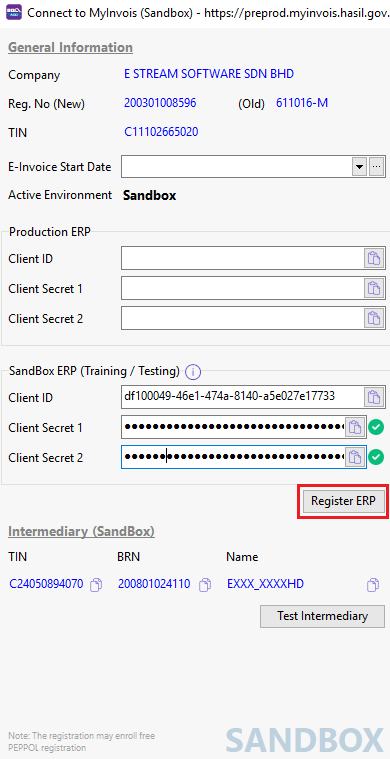
3. Click on Connect MyInvois to setup your LHDN MyInvois credential.

4. Click on the empty Client ID input and you will find see that the right panel now switched to Sandbox MyInvois Portal. Proceed to login.

5. Click on MyInvois9.
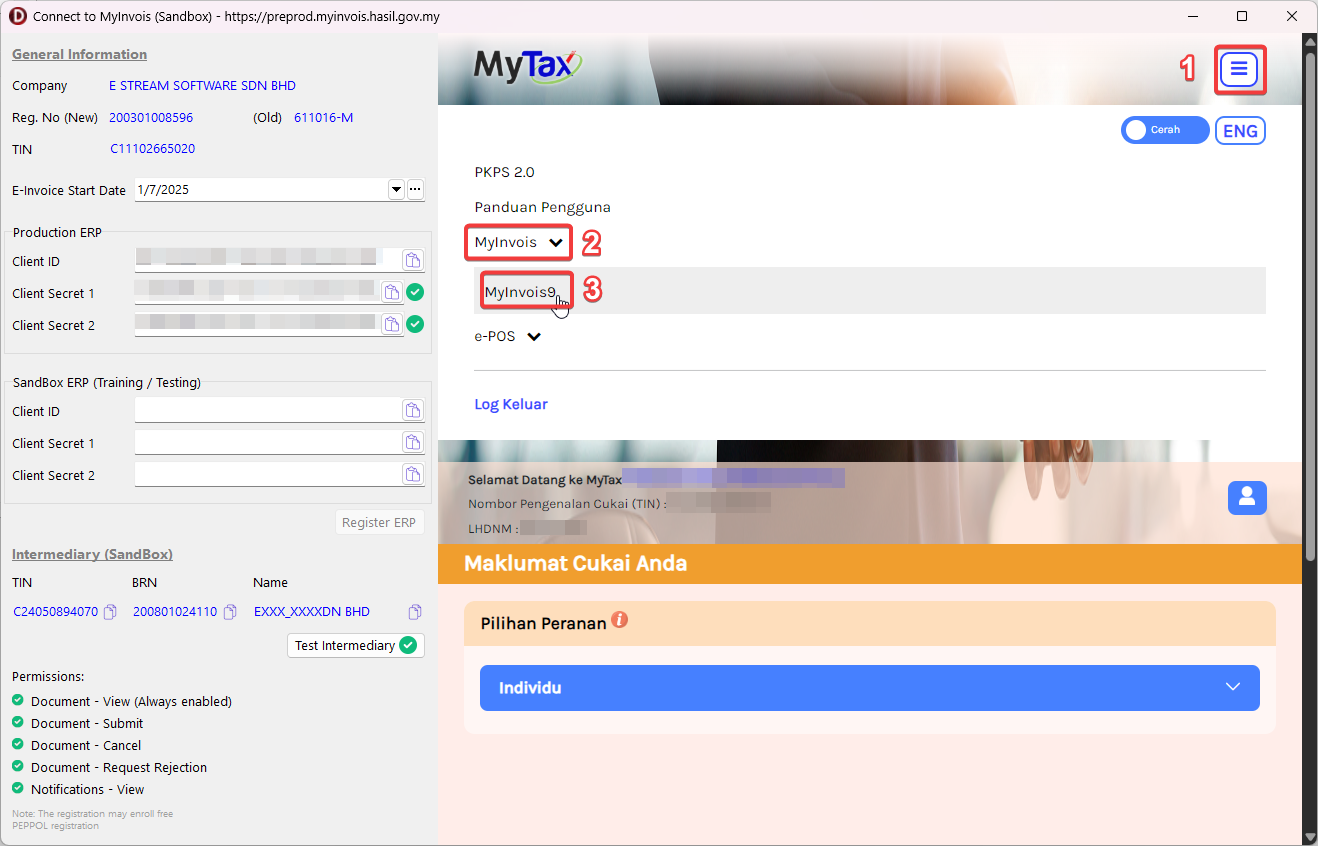
6. Click on top right, and click on View Taxpayer Profile.

7. Make sure that the company info (Name. TIN , BRN) in SQL Account are EXACTLY SAME as in MyInvois Portal.

8. If the company info in SQL Account is not match with the MyInvois Portal, click Back to Myinvois Portal.

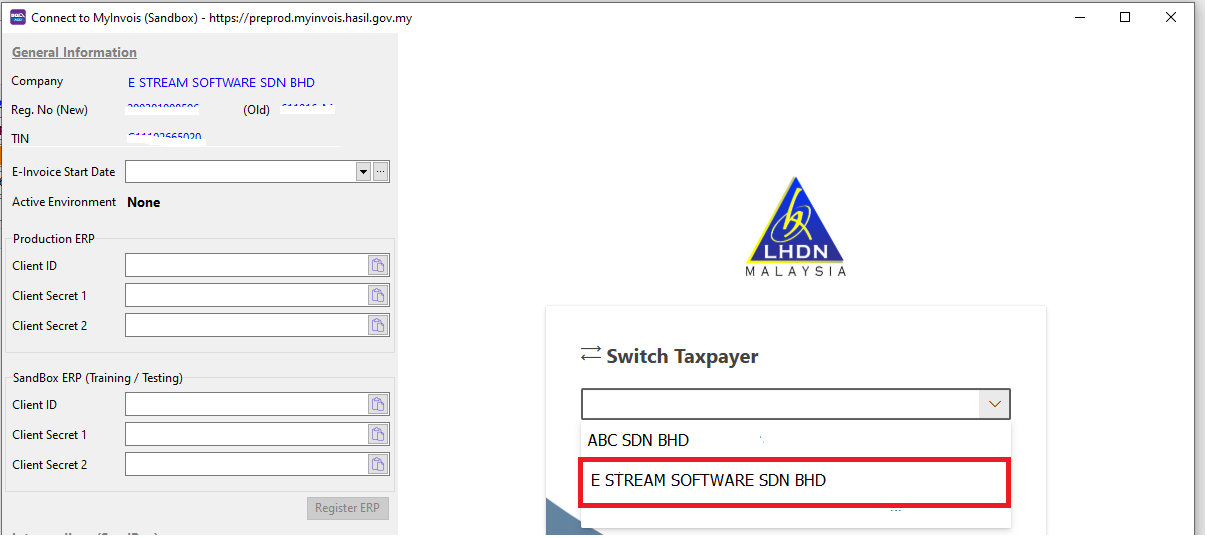
9. Click the profile, then select Switch Taxpayer.

10. Select the correct company name regarding to the one in SQL Account. After that, check again the taxpayer profile to make sure the info is matched.
11. Scroll to the bottom and click on Add Intermediary.

12. Fill in the TIN, BRN, and Name using the provided info on the left. Enter the captcha and click on Search button then Continue button.

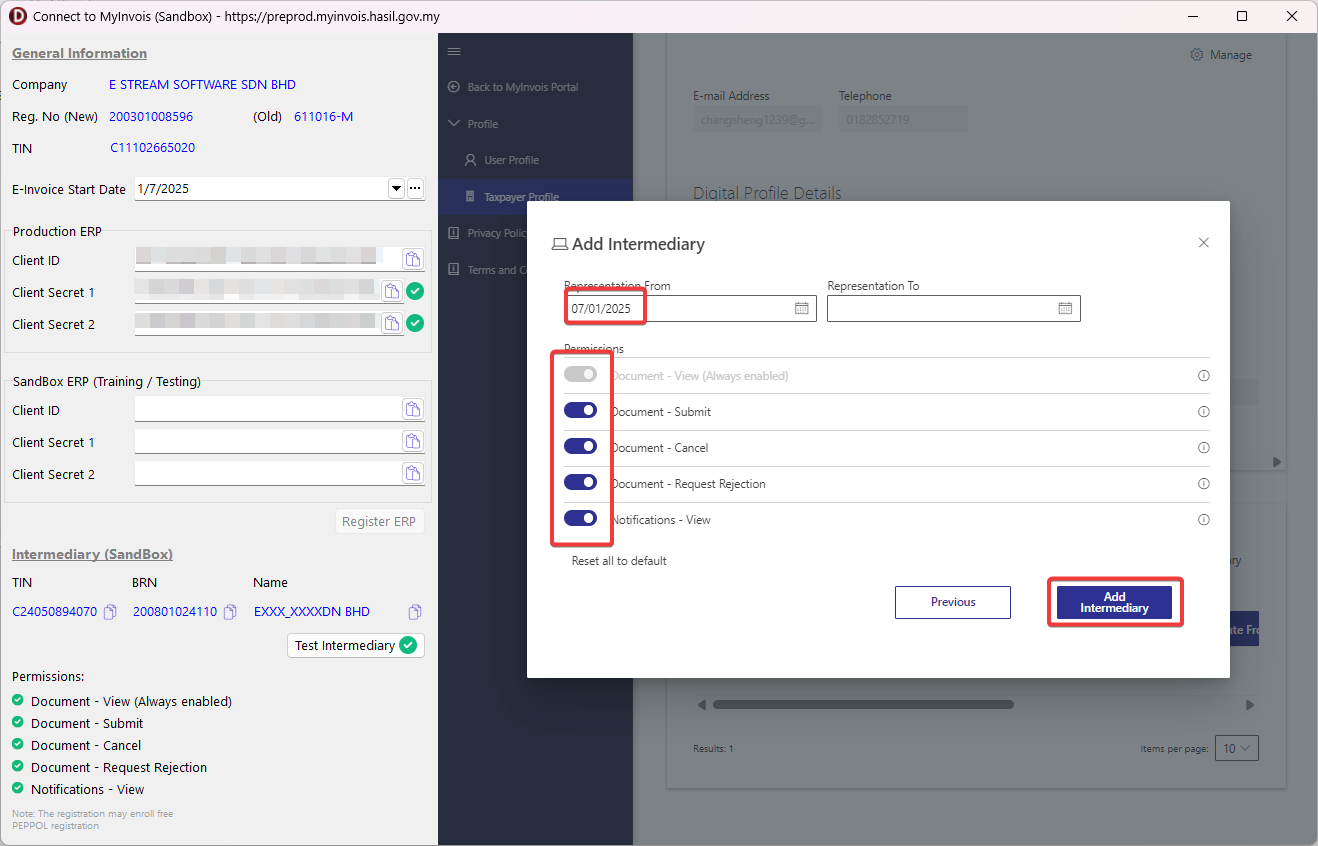
13. Setup the Representation From (select today), Representation To (leave empty to avoid expiry), and make sure all permissions has been enabled. Click on Add Intermediary to finish.
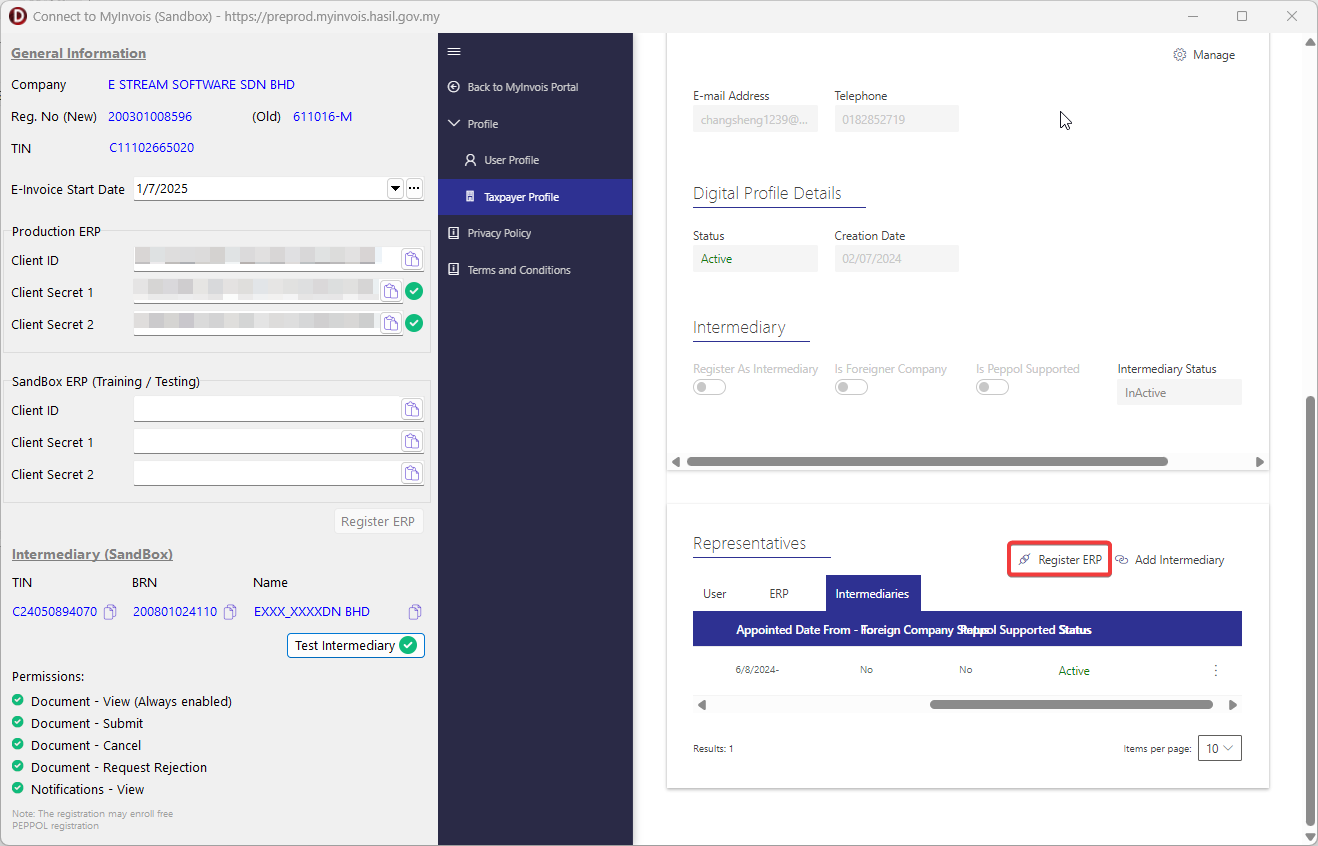
14. Click on Register ERP.
15. Fill in the ERP Name & Client Secret expiration as below:

16. Click on the copy button in sequence as shown below and you shall see the client id & secrets are being automatically filled on the left. Tick the checkbox & click on Done button.

17. Click on Register ERP and you're done.