Categories
Step 4 - How to submit E-Invoice
Single Submission
1. Click on MyInvois > Submit E-Invoice
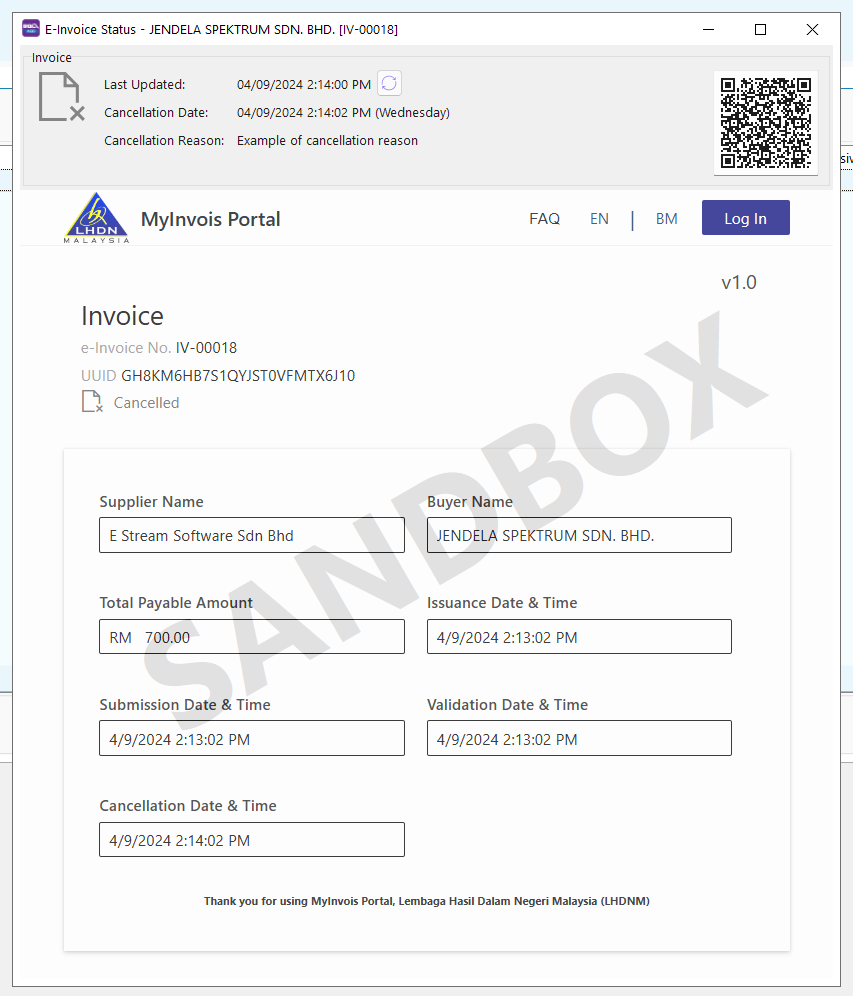
2. If the submission is valid, you will see the screen below, where you can see the validated Invoice info from LHDN directly.

Batch Submission
In the scenario where you already issued a lot of invoices but yet to submit E-Invoice, you can utilize the Batch Submission feature to submit them in single operation.
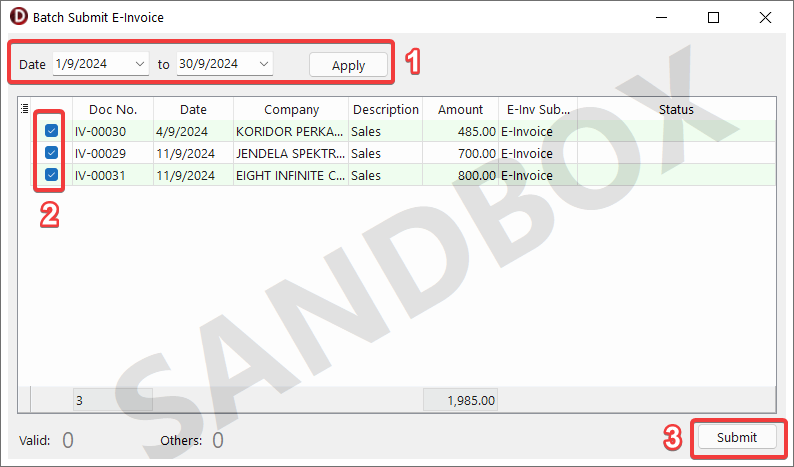
1. Click on MyInvois > Batch Submit E-Invoice
2. Apply the desired date range and untick any invoices that you do not wish to submit yet, then proceed to Submit.
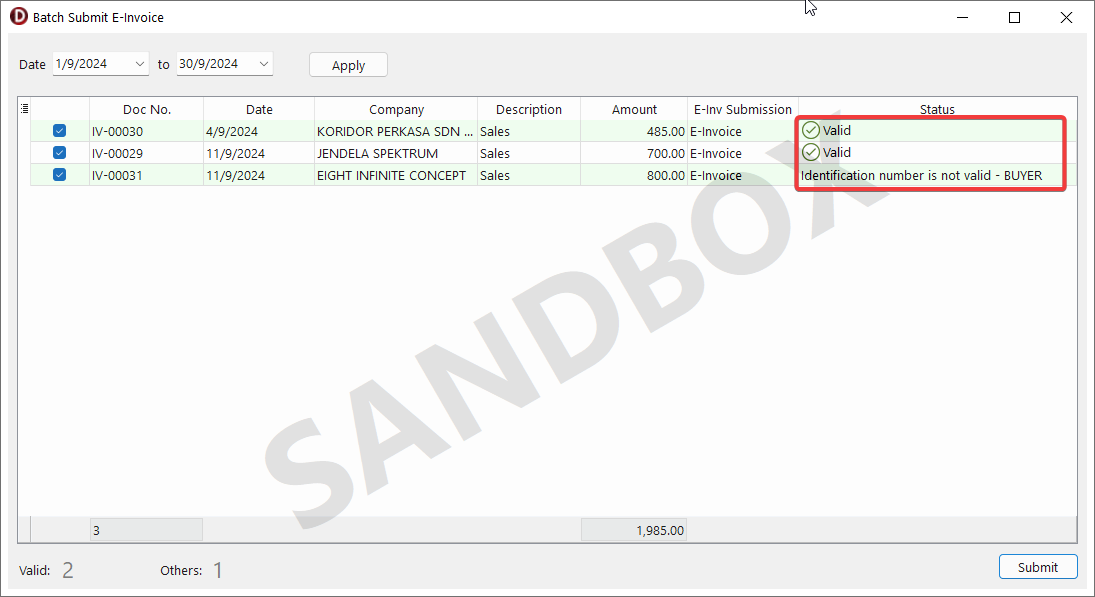
3. Refer to Status column for each E-Invoice status. If there's any errors, go to the specific invoice and update the incorrect details then retry submission again.
4.
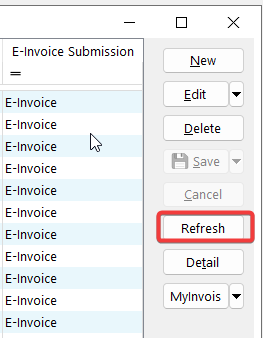
Go back to browse screen, click Refresh to see the updated status.
Consolidate
When the buyer does not require an e-Invoice, the supplier will issue a regular receipt, which does not need to be submitted for IRBM validation.
However, you are required to aggregate these transactions monthly and submit a consolidated e-Invoice to IRBM within seven calendar days after the month's end.
1. Click on MyInvois > Consolidate E-Invoice

2. Select the documents to consolidate:
2.1 Choose the desired date range
2.2 Tick Include unsubmitted E-Invoices if you want to include invoices with E-Invoice submission type. Refer to Step 4
2.3 Click Apply

3.
Review the aggregated invoice details and click Submit

4. If the consolidated E-Invoice is submitted successfully, you will see the following confirmation screen:

Cancellation
At the first 72 hours of an submitted invoice, you are able to cancel the e-invoice, then re-submit the same invoice again without issuing CN/DN.
In the first 72 hours period, you shall cancel the invoice and resubmit when:
- There is a mistake in the submitted e-invoice.
- Buyer rejected the invoice and you agreed with the rejection.
To cancel a submitted e-invoice:
1. Go to MyInvois > Cancel Validated E-Invoice.

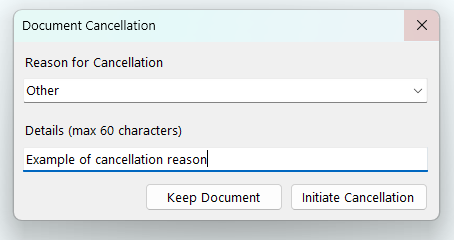
2. Enter the reason for cancellation then Click Initiate Cancellation. To dismiss the dialog, Click Keep Document.
3. To verify the latest status, go to MyInvois > Check E-Invoice Status.