What is it for? :To filter the data based on the conditions set.
When to use? :When you want to block some users from seeing certain documents.
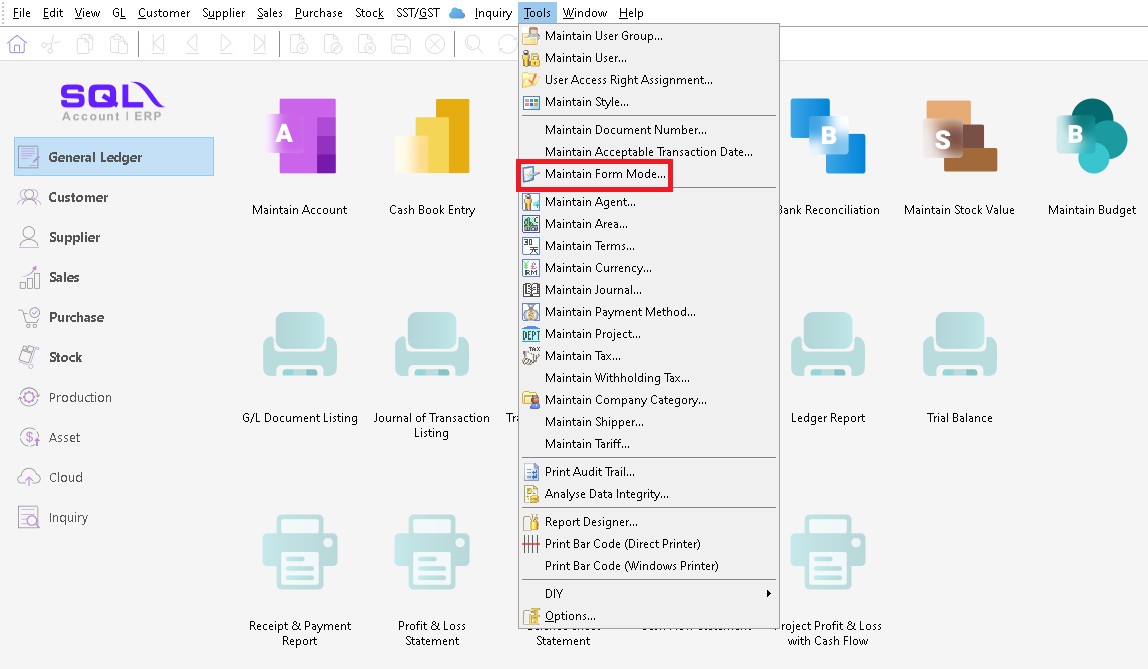
1. Tools | Maintain Form Mode
2. Create new form mode
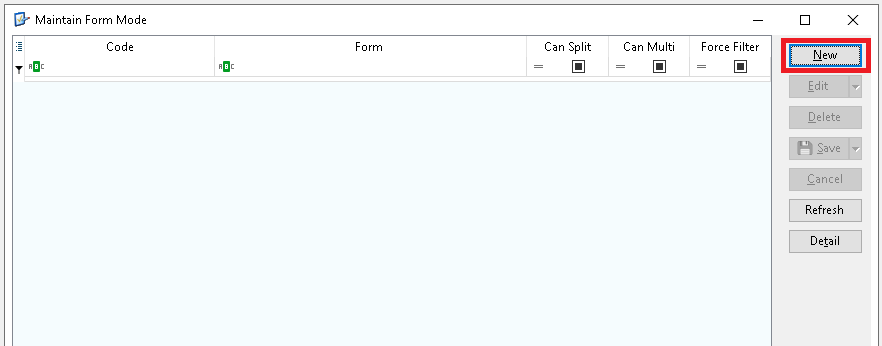
2.1. Click New.
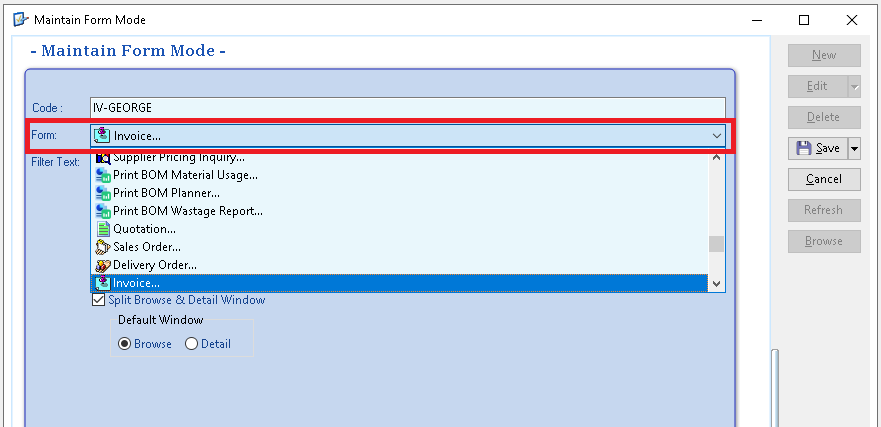
2.2. Enter a code.
You can create the code that makes sense to you. In this example, I'll use IV-GEORGE.
2.3. Select a Form to filter (e.g. Invoice).
You can type it out or find it using the scroll bar.
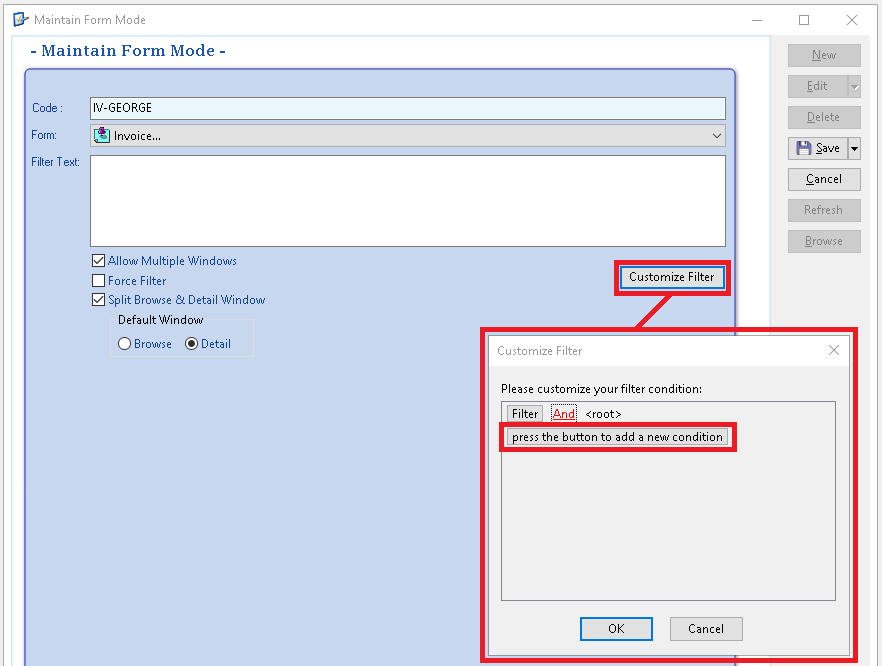
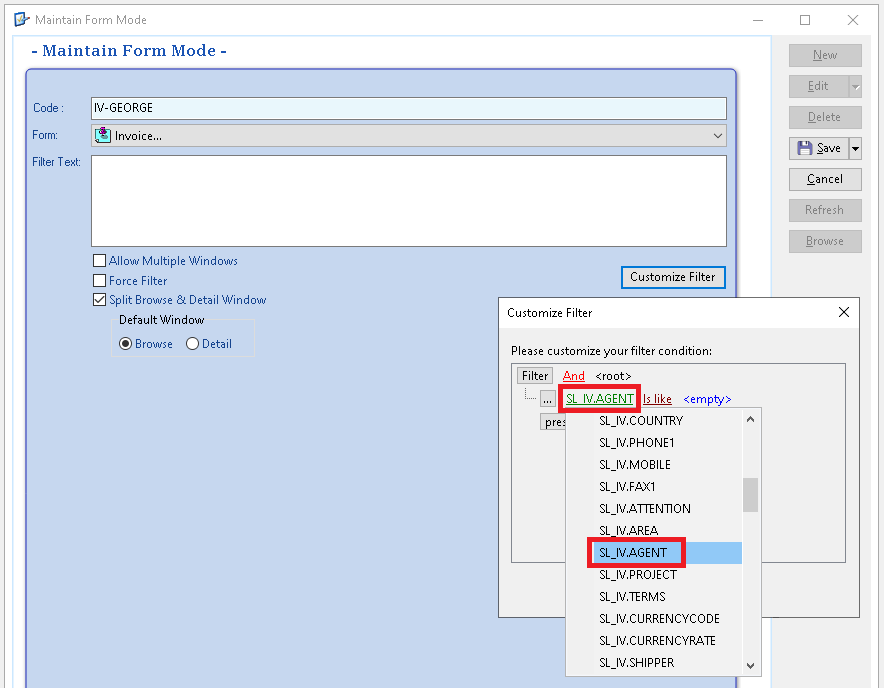
2.4. Click Customize Filter. Click press the button to add a new condition.
2.5. Choose a field to filter (e.g. SL_IV.AGENT).
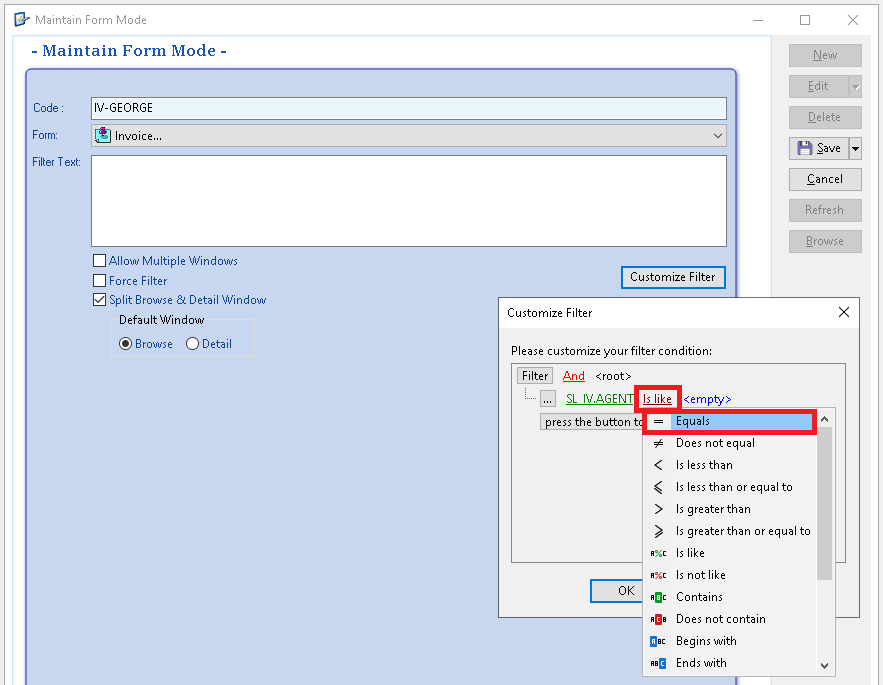
2.6. Choose the filter operators (e.g. equals).
2.7. Enter the agent code.
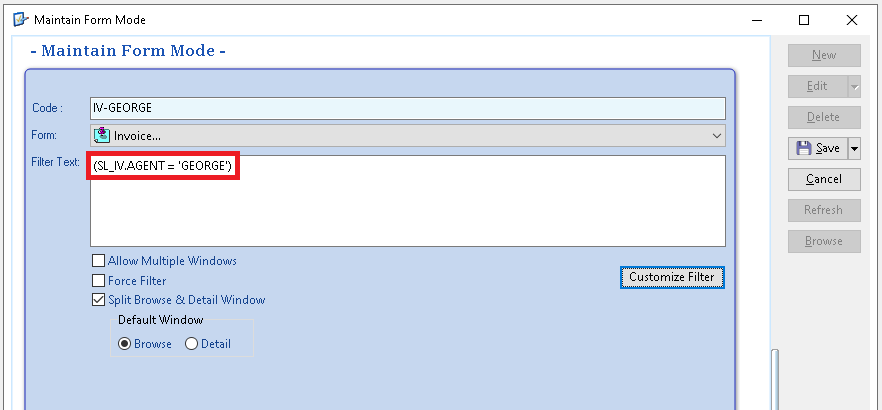
2.8. Filter Text will appear as (SL_IV.AGENT = 'GEORGE').
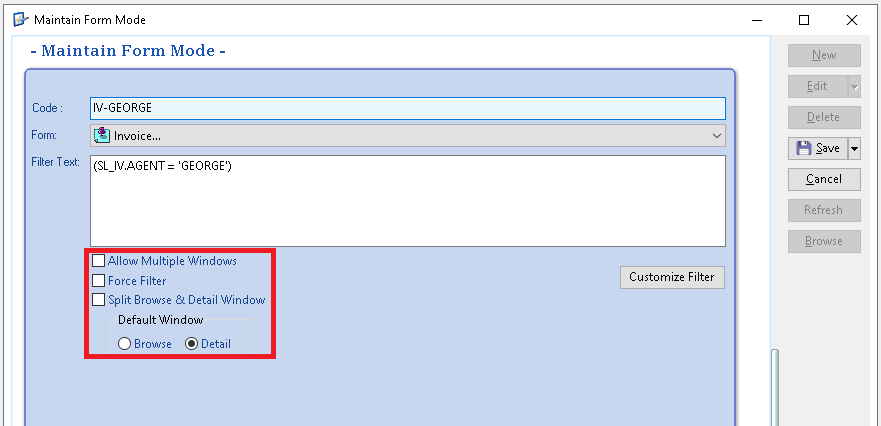
2.9. Optional setting.
Allow Multiple Windows: Lets you open more than one window of the same screen.
Force Filter: Always applies the filter before showing data.
Split Brows & Detail Windows: Shows the Browse and Detail screens in seperate windows.
Default Window (Browse): If this is selected, will open the list of all documents after select a browsing mode.
Default Window (Detail):If this is selected, will open the details of the most recent document after select a browsing mode.
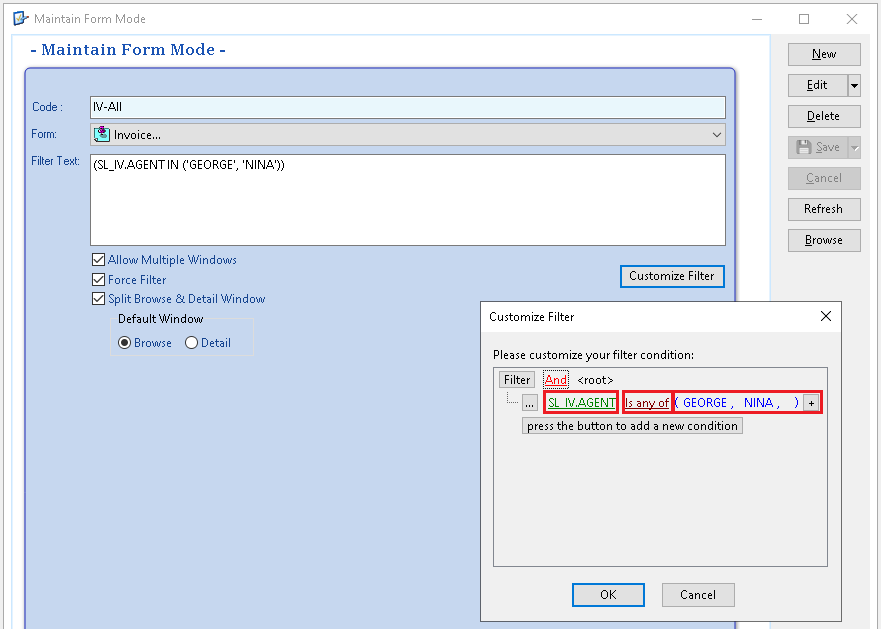
2.10. For convenience, you can create a form mode that shows all invoices regardless of the agent code.
Same steps as before, enter a code, select 'Invoice' as the Form and click customize filter.
a) Select SL_IV.AGENT as the field.
b) Select Is any of as the filter operator.
c) Enter all agent codes inside ( ), click + to add more agent codes.
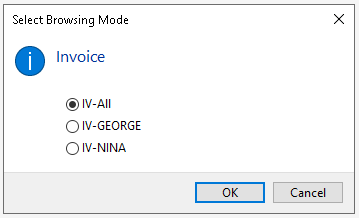
2.11. Now that you have created more than 1 form mode for the same form (e.g. Invoice), when you go to Sales | Invoice as ADMIN, a prompt will appear asking you to choose which browse mode to use, simply choose the one you would like to view.
3. Lock the form mode by User
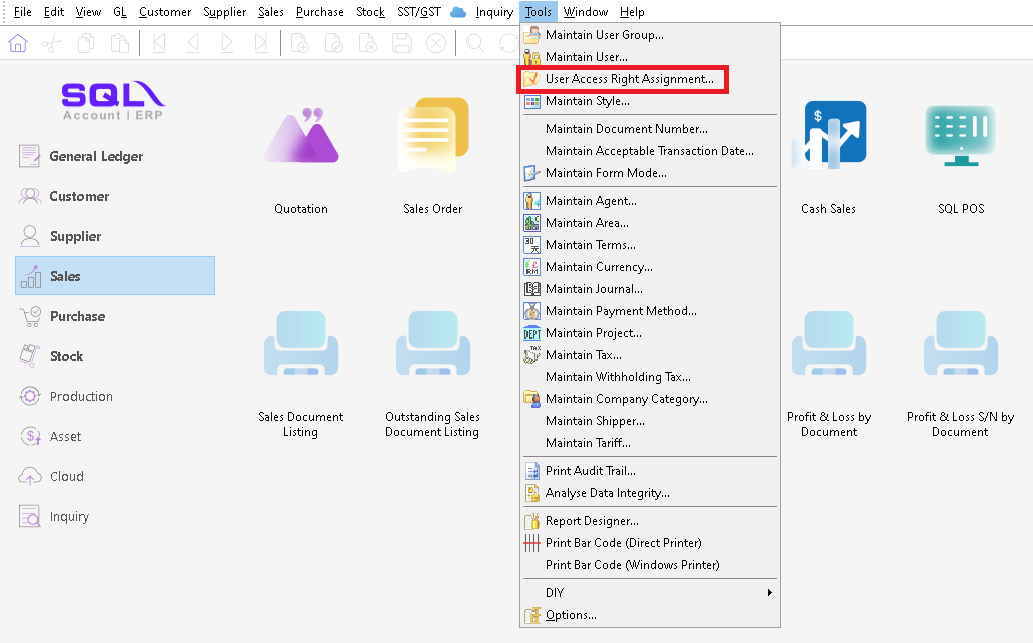
3.1. Tools | User Access Right Assignment
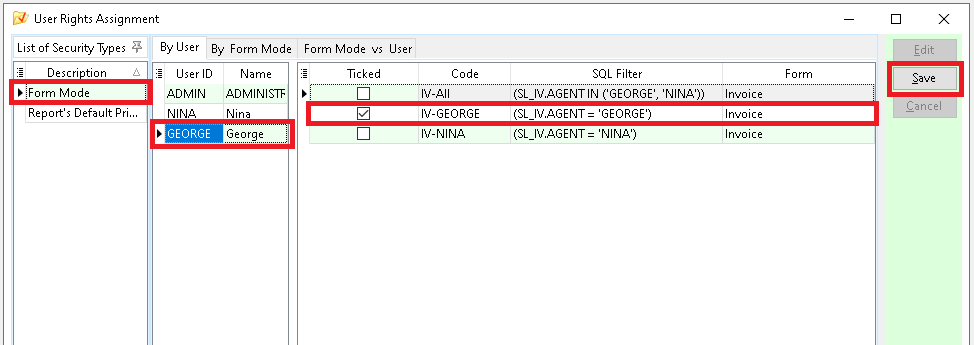
3.2. Select the user, e.g. user ID: GEORGE.
Tick on the form mode with code IV-GEORGE. Click save.
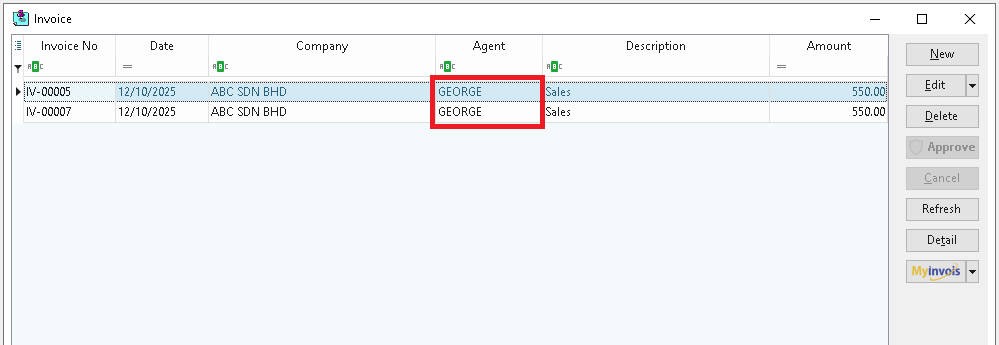
3.3. Login as user GEORGE. Go to Sales | Invoice.
Now, user GEORGE can only see the invoices belong to his agent code 'GEORGE'.