Categories
Step 4C - Self-Billed E-Invoice
SELF-BILLED IN PAYMENT VOUCHER/PURCHASE INVOICE
PAYMENT VOUCHER
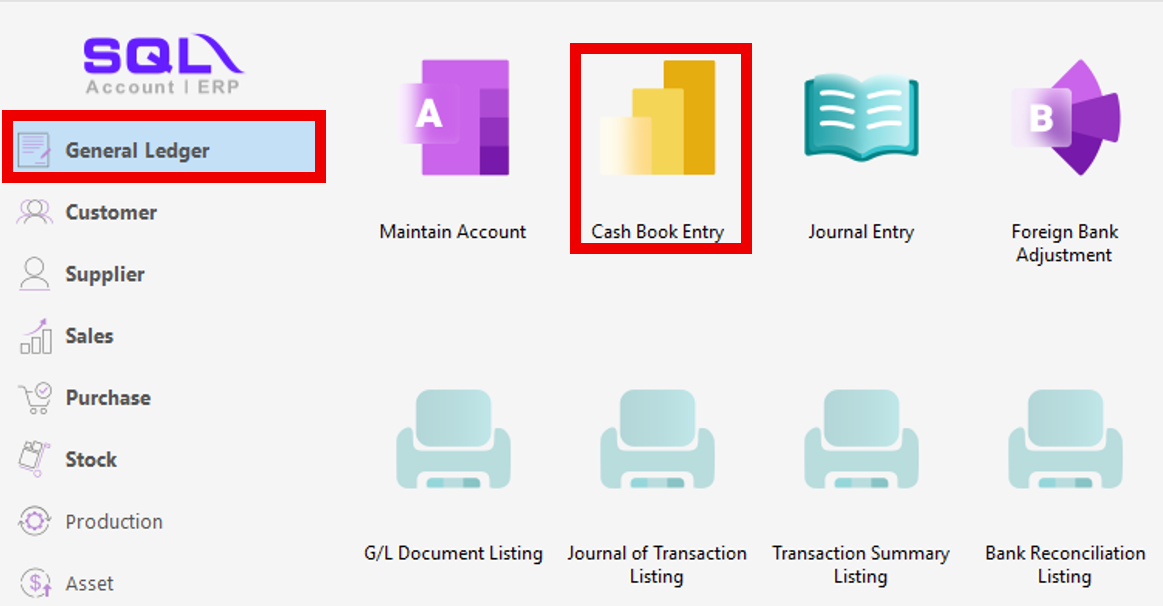
1. GENERAL LEDGER | CASH BOOK ENTRY
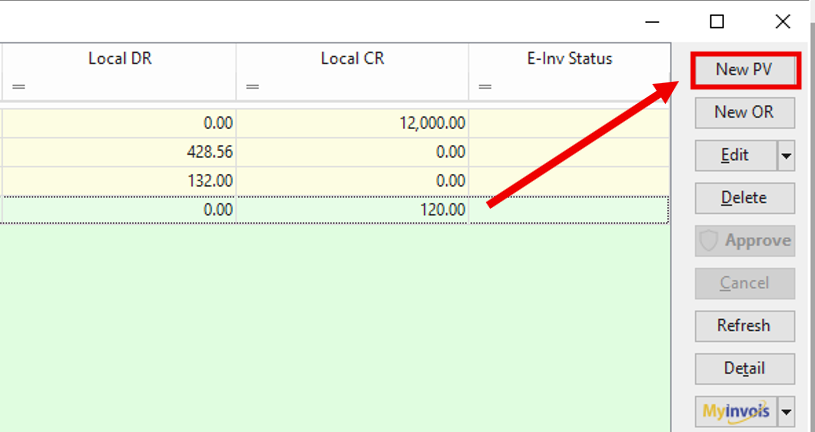
2. Inside the Cash Book Entry, Click New PV
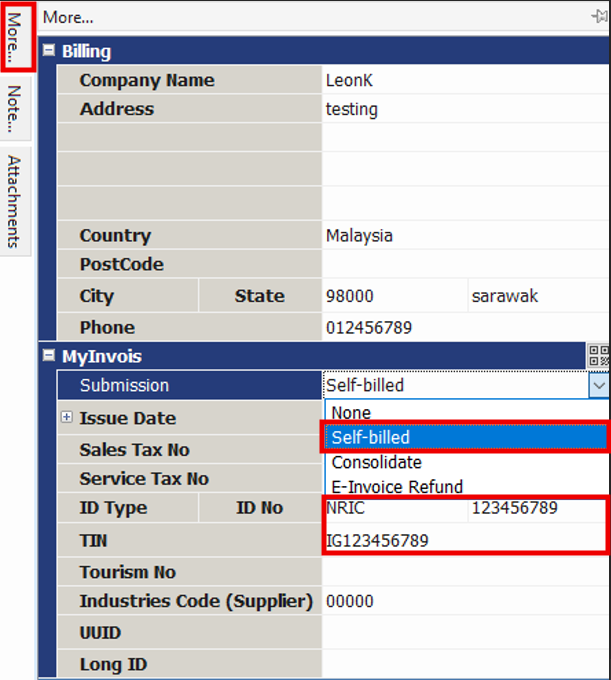
3. Find More option at the top left corner and click it > Fill in the details of the Company/Individual
> Change the submission column from None to Self Billed > Fill in the correct TIN number OR NRIC
(*NOTE for Individual: Must key in TIN number or NRIC either one as it is mandatory for self billed)
(*NOTE for Company: Must key in both TIN or BRN number as they are mandatory for self billed)
4. Key in the correct name of the [Company/Individual/Purpose of payment] that you are going to make payment to at the "Payment To" section

5. Choose the payment method you wish to make payment with at the "Payment By" section

6. Choose the correct GL Code that matches the purpose of payment and fill in the correct total amount that you are going to pay
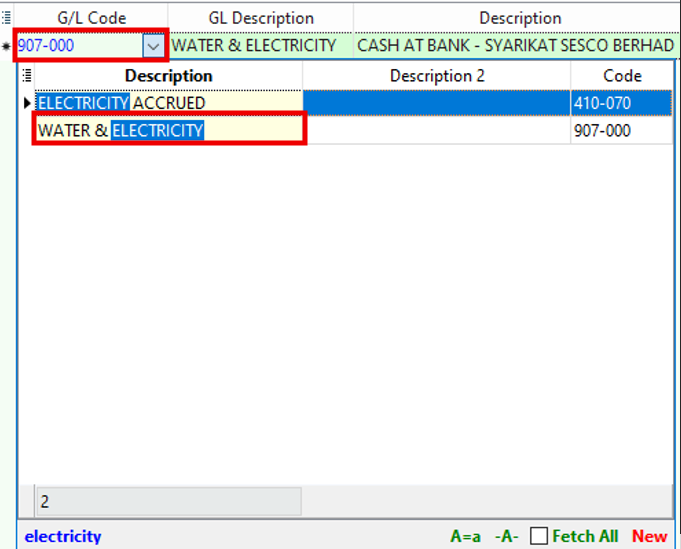
7. The class code should also matches the purpose of issuing this self billed payment voucher and remember to SAVE the payment voucher once you have done completing all the mandatory details

8. At the side bar, look for MyInvois button and Click it > Click submit E-invoice

9. This is how a valid Self-billed E-invoice looks like after submission for Payment Voucher

PURCHASE INVOICE
1. PURCHASE | PURCHASE INVOICE
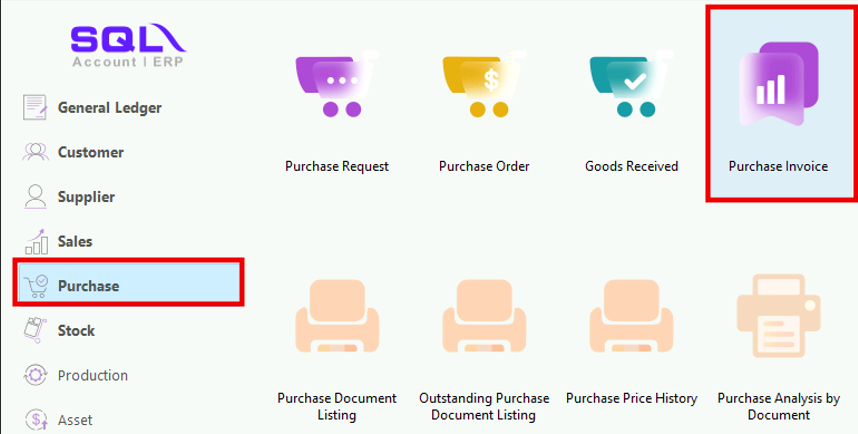
2. Inside the Purchase Invoice, Click New
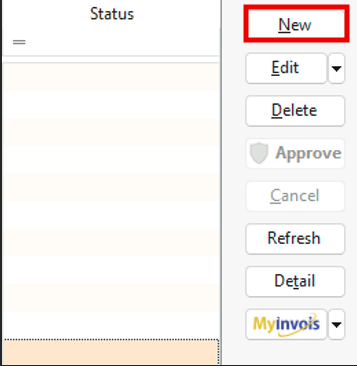
3. Find More option at the top left side and click it > Fill in the details of the company
> Change the submission column from None to Self Billed > Fill in the correct BRN AND TIN number
(*NOTE for Individual: Must key in TIN number or NRIC either one as it is mandatory for self billed)
(*NOTE for Company: Must key in both TIN or BRN number as they are mandatory for self billed)

4. Fill in all the details for Purchase Invoice and remember to SAVE the purchase invoice once you have done completing all the mandatory details
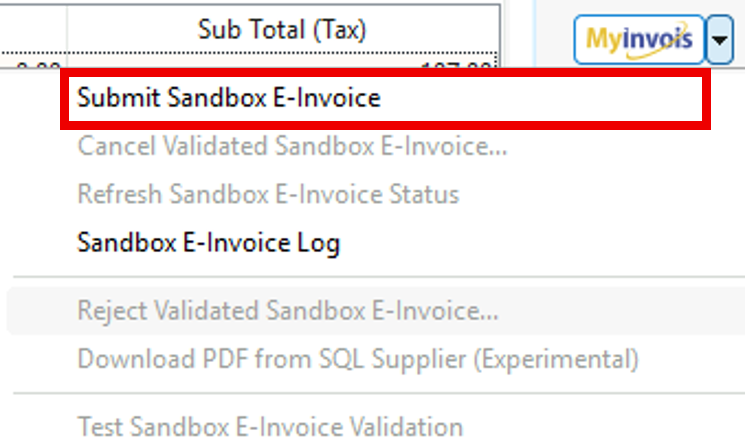
5. At the side bar, look for MyInvois button and Click it > Click submit E-invoice
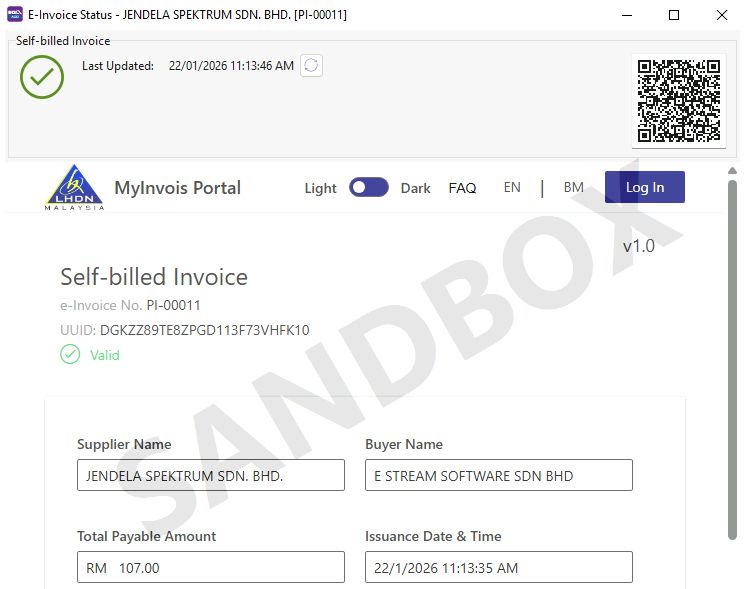
5. This is how a valid Self-billed E-invoice looks like after submission for Purchase Invoice
**What are the circumstances that you (as the buyer) need to issue self-billed e-Invoices:
1. Incentive / Commission (Payment to Agents, Dealers & Distributors)
2. Import Goods / Services (Payment to overseas suppliers for imported goods or services)
3. Profit Distribution (Payment to overseas suppliers/imported goods or services)
4. Fees of e-commerce platforms (Shopee, Lazada)
5. Lottery or Winnings (Licensed betting companies awarding prizes to winners)
6. Payment to non-business individuals (rental, salaried worker, referral fees)
7. Interests Payments (paid to individuals or companies)
8. Insurance Claims (Claim payouts by insurance companies to clients)
9. Capital Reduction or Share Buyback (Returning funds to shareholders or investors)
-- For more details, Refer to Page 63, 8.3 https://www.hasil.gov.my/media/uwwehxwq/irbm-e-invoice-specific-guideline.pdf --
**Simple Example to explain Self-Billed Invoice:
- Company ABC pays rent to landlord
- Landlord does not issue E-invoice (not required)
- Company ABC creates a self billed E-invoice on behalf of the landlord
- Company ABC submits the e-invoice to LHDN to record rental expense correctly
- Landlord still receives money normally as they have nothing to do with E-Invoice