Categories
Step 4B - Consolidated Self-Billed
CONSOLIDATED SELF-BILLED IN PAYMENT VOUCHER/PURCHASE INVOICE
PAYMENT VOUCHER
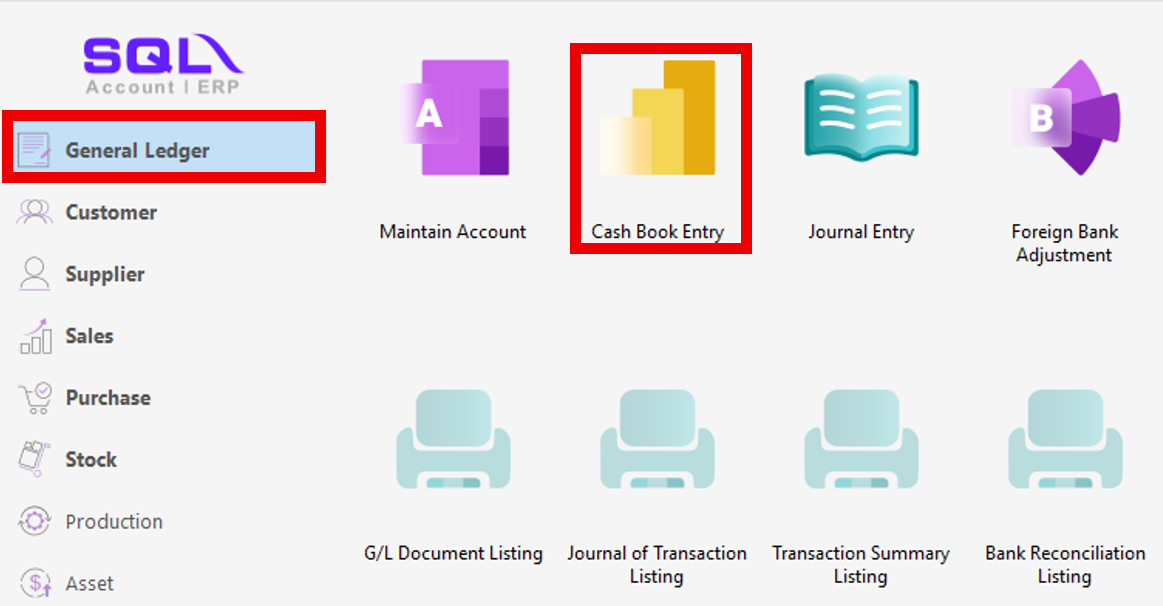
1. GENERAL LEDGER | CASH BOOK ENTRY
2.
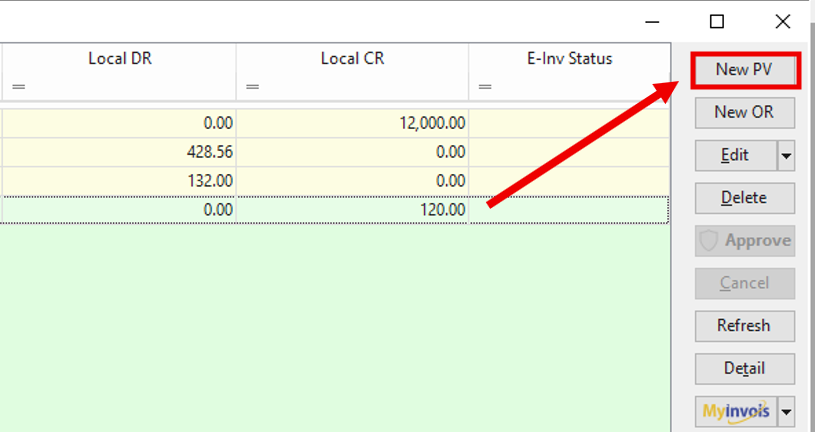
Inside the Cash Book Entry, Click New PV
2.
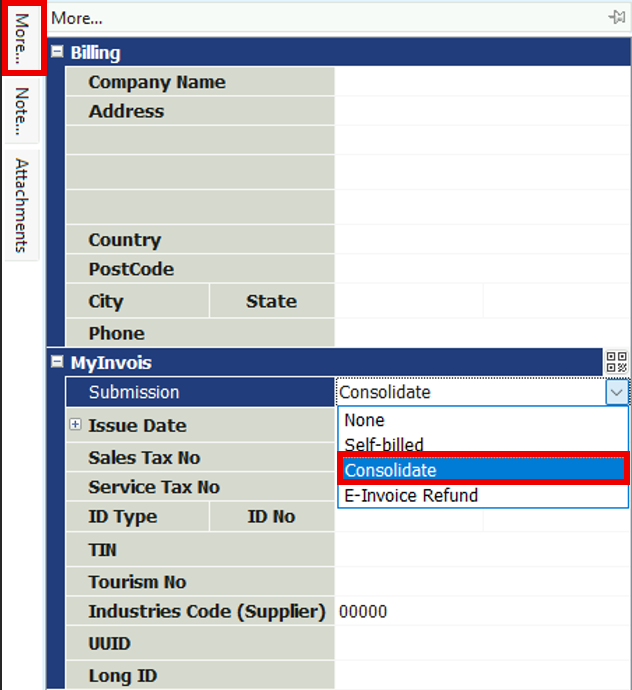
Find more option at the top left corner and Click it > Fill in the details of the Company/Individual
> Change the submission column from None to Consolidate
4.
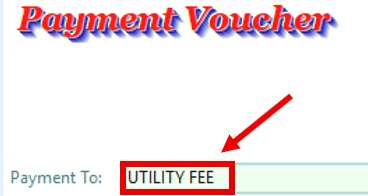
Key in the correct name of a [Company/Individual/Purpose of payment] that you are going to make payment to at the "Payment To" Section
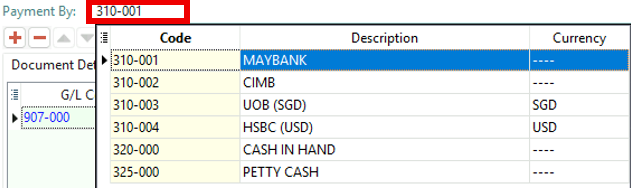
5. Choose the payment method you wish to make payment with at the "Payment By" section
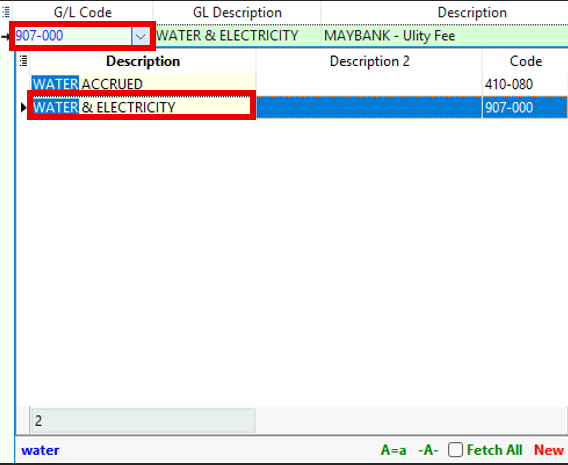
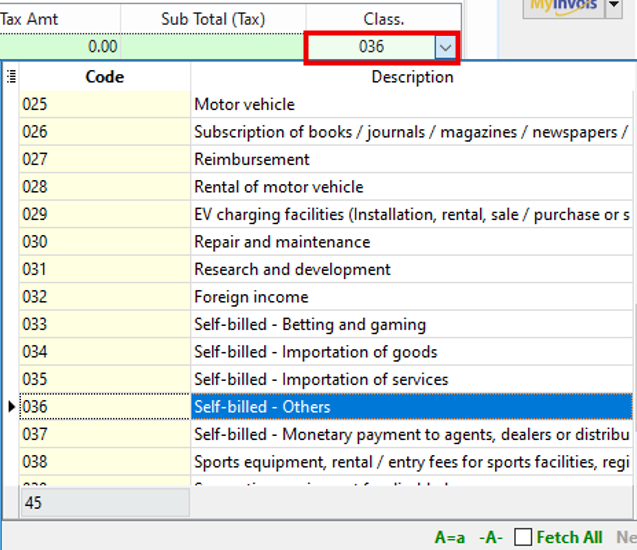
7. The class code should also matches the purpose of issuing this self billed payment voucher and
remember to SAVE the payment voucher once you have done completing all the mandatory details
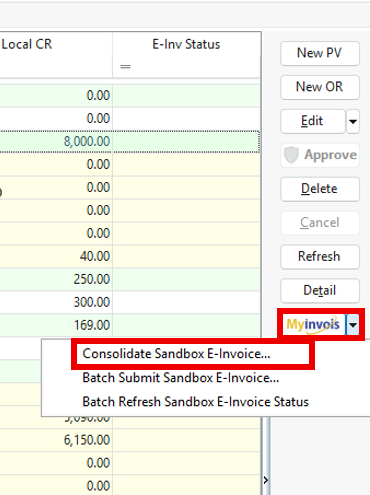
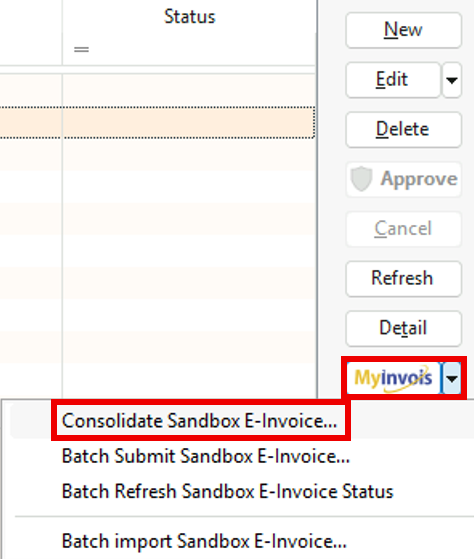
8. Return back to Cash Book Entry > Look for MyInvois and Click it > Click Consolidate E-invoice
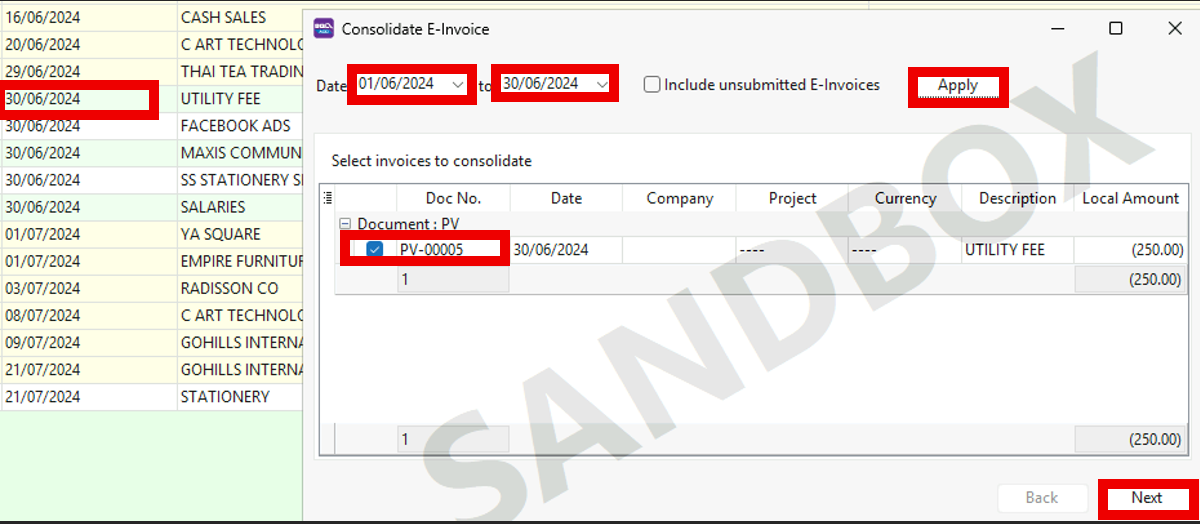
9. Set the date range to the submission month> Click Apply > Tick the payment voucher > Click Next
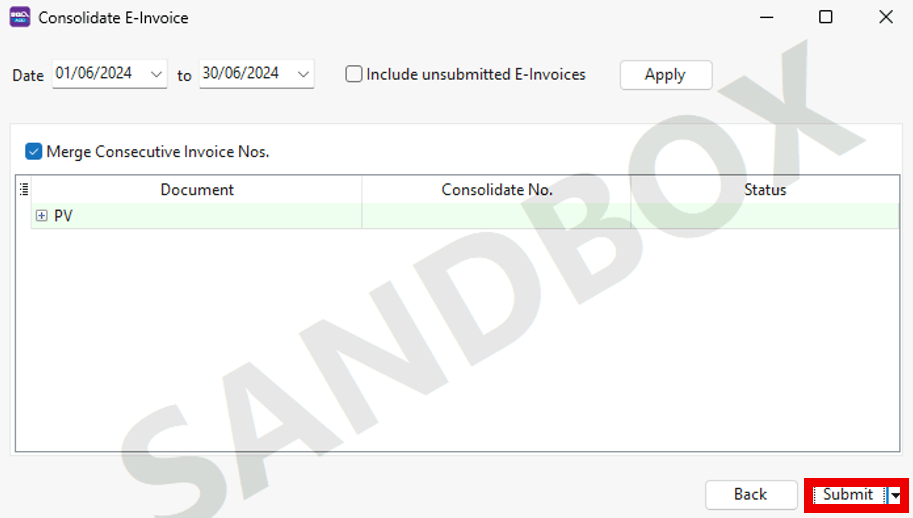
10. Click Submit
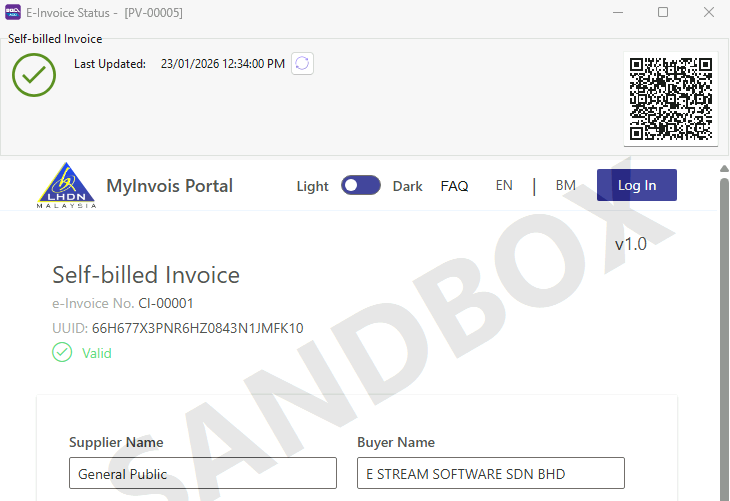
11. This is how a valid Self-billed E-invoice looks like after submission for Payment Voucher
PURCHASE INVOICE
1. PURCHASE | PURCHASE INVOICE
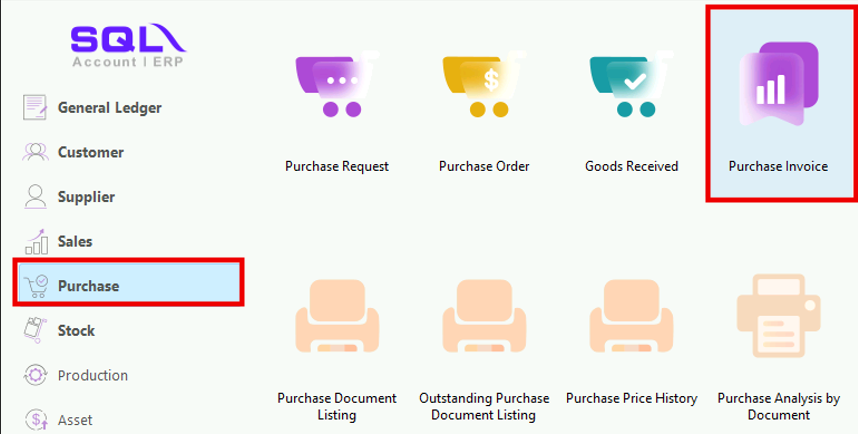
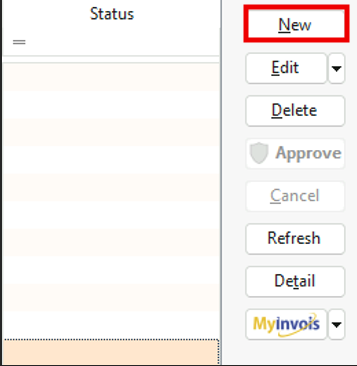
3. Find More option at the top left corner and click it > Fill in the details of the company
> Change the submission column from None to Consolidate

4. Fill in all the details for Purchase Invoice and remember to SAVE the purchase invoice once you have done completing all the mandatory details
5. Return back to Purchase Invoice > Look for MyInvois and Click it > Click Consolidate Sandbox E-invoice
6. Set the date range to the submission month> Click Apply > Tick the payment voucher > Click Next

7. Click Submit

8.
This is how a valid Self-billed E-invoice looks like after submission for Purchase Invoice

You may refer to this video:
https://www.youtube.com/watch?v=kqPKXi6oatU