Categories
RMS - How to Set Promotion
In Zeoniq RMS, go to side bar "POS" > "Promotion".

1. To create a promotion, click on the paper icon on the upper right screen.

2. Fill in the following required data fields before click save:
- Promotion Code
- Status (set to "Released" to active the promo)
- Description
- Receipt Description
- Promotion Logic (Choose appropriate logic)
- Sale Start & End (may ignore if no end) Date
- Test Start & End (may ignore if no end)Date (for Training Mode)
- Promotion Method (Auto or Manual)

All other data fields are optional to further tailor and adjust the promotion conditions.
3. After saved, go to top bar "Basket List". This is where you set what items or categories the promotion applies to. The basket list settings will depend on which promotion logic you choose.
In the example below, the promotion logic is "Buy X Discount Y", which means if a customer buys X item, then Y item (a completely different item) will have a discount. An example settings are shown below.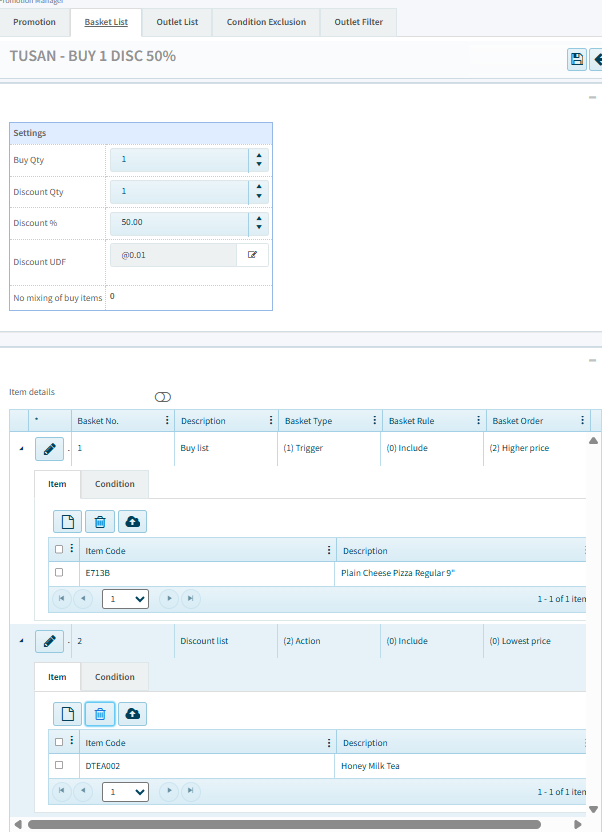
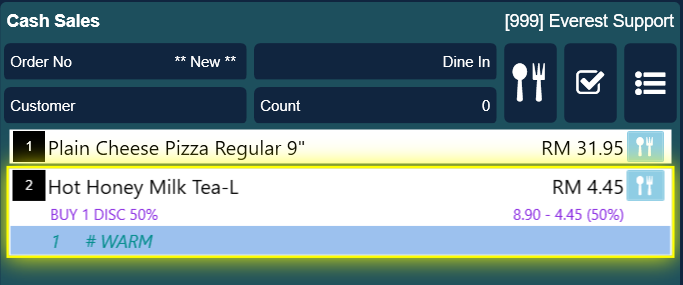
In the settings above, when a customer buys one plain cheese pizza, they will get one 50% discounted Honey Milk Tea. Below is how it looks like in Zeoniq POS.
If you want the basket to include a whole category of items, use the "Condition" tab instead and choose "Category" "Equal" "(your desired category)". Please note that you should only choose one of the tabs to use for basket list setting, "Item" or "Condition" tab. Using both at the same time for the same X (1) or Y (2) item listing will lead to confusion and unintended functions.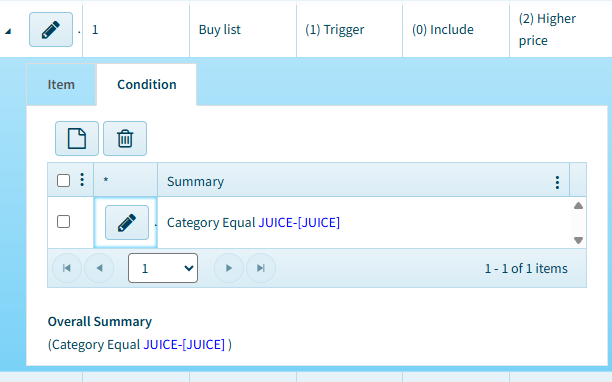
4. After done set the items, click save on the top right corner. Then sync & refresh Zeoniq POS.
Supplementary Explanation of All the Data Fields in "Promotion" Tab
To be continued...